VPKit is an iOS SDK for generating interactive media which provides a seamless transition from a social feed to an e-commerce experience.
To use VPKit, we provide you with VPKPreview, a subclass of UIImageView. Your image is now interactive, and your team can manage the journey and gain analytical insight. If the image is a placeholder for a video, VPKit provides an interactive video player as a replacement for AVPlayerViewController
A VEEP is a metadata object providing interactive hotspots in images and video, with a built-in browser to follow those links whilst remaining inside the host app.
The current release is VPKit 2.11.8. The SDK can be downloaded from our GitHub repository or added as a Swift package.
A complete class reference is available here
For installation help: sdk_support@veepio.com
About the SDK
VPKit is supplied as a pre-compiled xcframework, in dynamic and static variants, for devices and for arm64 and x86_64 simulators. It works in Swift and Objective-C iOS projects and can be installed with the Swift Package Manager, manually, or with CocoaPods. Demo apps in each language show how to incorporate and use the SDK.
Requirements
- iOS 12 or later.
- Apps built with the iOS 27 SDK must adopt the UIScene life cycle (
UIApplicationSceneManifestand aUISceneDelegate); VPKit itself works under either life cycle. - VPKit includes a privacy manifest. It collects no advertising identifier unless you opt in (see IDFA support).
What’s new in 2.11
- Analytics are delivered to the Veepio events collector;
setAnalyticsCollectorURL:overrides the destination. The AWS Kinesis dependency is gone. - IDFA collection is an explicit opt-in, gated on App Tracking Transparency authorisation, and the IP address is no longer collected.
- iOS 18, 26 and 27 layout fixes: the web panel and editor footer are no longer hidden behind the media, and track rectangles can be tapped on iOS 27.
- Portrait media is capped at 58% of the viewer height and aspect-fitted, leaving room for the web panel.
- Larger touch targets: track rectangles accept taps up to 12 pt outside their border.
- Smoother presentation: the video control bar is in place from the first frame, the poster only fades once the video has a frame to show, and opening and closing a veep animate on critically damped springs. When a video veep closes, the frame on screen flies back to your preview.
- Stability: closing a video veep no longer crashes during player teardown.
- The
VPKServerEnvironmentenum has been removed; usesetProduction:.
Viewing a VEEP image
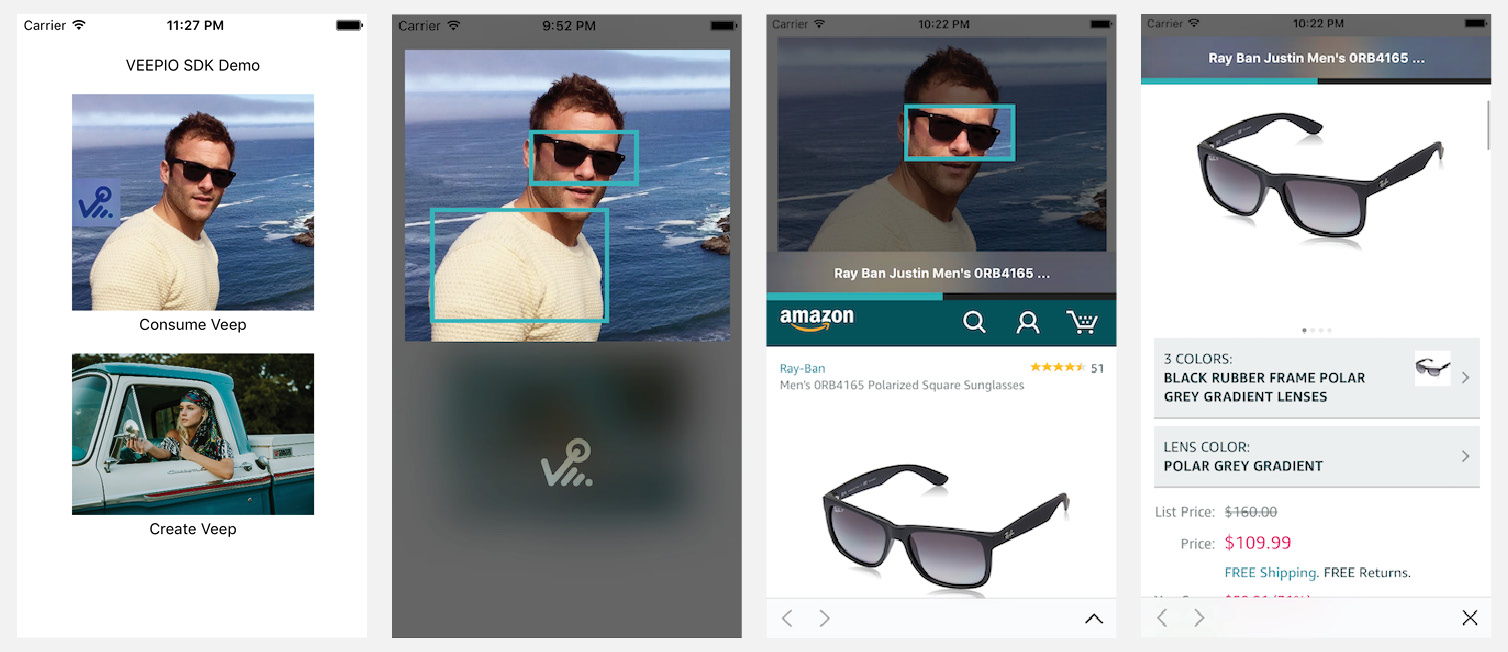
VEEPIO interactive media are identified by the Veep icon overlay in VPKPreview imageViews. The Veep icon indicates that the preview image has associated veep metadata.
- Tapping a
VPKPreviewwith a veep-enabled image launches theVPKVeepViewerview controller with veep image viewer. - Interactive areas of images are marked by veep track borders.
- Click on veep track to view linked web content below the media.
- Click the expand icon “ ^ “ to view the webview in full screen mode.
- Click “X” icon to exit full screen web view.
- Swipe the image to dismiss the
VPKVeepViewerand return to your place in the hosting app.
Viewing a VEEP video
VEEPIO interactive media are identified by the Veep icon overlay in VPKPreview imageViews.
- Tapping a
VPKPreviewwith a veep-enabled video preview image launches theVPKVeepViewerview controller with veep video player. - Interactive areas of videos are marked by veep track borders that follow the tracked object.
- Tap the video to pause it and show the controls; tap a veep track to open its link.
- Color bars on the video timeline indicate locations of veep tracks in the video.
- Click on veep track to view linked web content below the media.
- Click the expand icon “ ^ “ to view the webview in full screen mode.
- Click “X” icon to exit full screen web view.
- Swipe the image to dismiss the
VPKVeepViewerand return to your place in the hosting app.
Creating VEEP’d media
Use the VPKitMaker SDK to create VEEP media metadata: draw a track on an image or a video, follow the object through the video with the built-in tracker, link it to a web page and publish. VPKitMaker is distributed privately; contact sdk_support@veepio.com for access.
Integrating the framework
Integrate with the Swift Package Manager (recommended), manually, or with CocoaPods.
Swift Package Manager
In Xcode choose File > Add Package Dependencies… and enter
https://github.com/veepionyc/VPKit-spm
Select version 2.11.8 and add one product to your app target: VPKit-dynamic or VPKit-static. The package also resolves VPKit’s dotveep dependency.
// Package.swift
.package(url: "https://github.com/veepionyc/VPKit-spm", exact: "2.11.8")
Manual integration
Download VPKit.xcframework from the VPKitDemo repository (tag 2.11.8), or VPKit-dynamic.xcframework.zip / VPKit-static.xcframework.zip from the 2.11.8 release. The framework is self-contained: no other frameworks need to be added.
Drag and drop the VPKit.xcframework binary into your Xcode project
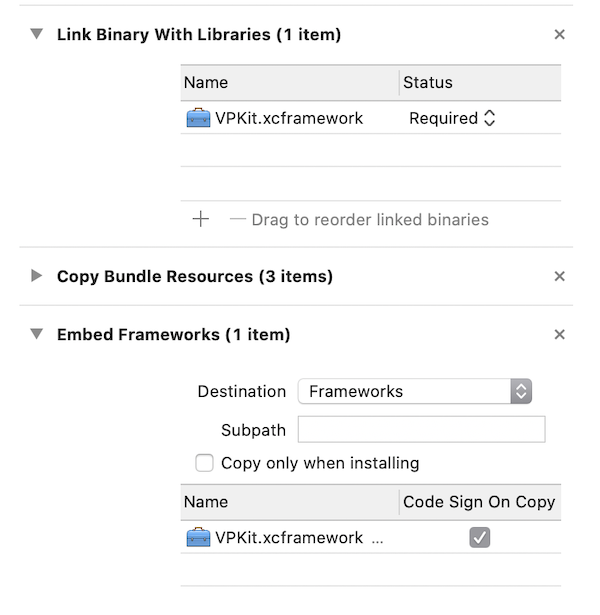
Ensure the framework is included in “Frameworks, Libraries and Embedded Content” in the general tab of your target settings. Select Embed & Sign for the dynamic variant and Do Not Embed for the static one.

Build Phases Tab
Ensure the framework appears in both “Link Binary with Libraries” and “Embed Frameworks” sections. This should be correct if you have added the framework correctly in the General Tab. The signing box should be checked.
Cocoapods integration
VPKit 2.11.8 is being published to the public CocoaPods trunk (until it appears there, trunk serves 2.10.3; use the Swift package meanwhile). Pin the version:
platform :ios, '12.0'

target 'MyApp' do
  pod 'VPKit', '2.11.8'
end
Run pod install from the command line.
VPKit demo apps
Demo apps are hosted on GitHub github.com/veepionyc/VPKitDemo. They are built against VPKit 2.11.8 and adopt the UIScene life cycle.
You will find detailed usage and integration notes in the App Delegate and ViewController files:
view veeps
objective-c
AppDelegate.m
ViewController.m
swift
AppDelegate.swift
ViewController.swift
Usage
App registration
Your app will need to be registered with VEEPIO before you can create or consume VEEP metadata. This process can be completed on the VEEPIO developer portal. Each app that you create will be assigned an appID (name), clientID, clientSecret.
Initialization in your App Delegate
You will need to identify your app to the VPKit SDK in order to successfully request VEEP metadata. The App Delegate is a good location for this. You will need to have first obtained your appID (name), clientID, clientSecret from the the VEEPIO developer portal. For testing purposes you can use the identifiers for the Veepio test app below; contact sdk_support@veepio.com if they are rejected:
//swift
let appID = "VEEPIO_test_app_id"
let clientID = "VsRIkxIfTtkFJhw1ABItnO50B6fSW23NhIRnST53"
let clientSecret = "OdWbCaP9i1I2AV2yZUzwfDFE4gU04RDX1HdubnTEg8oWw8F9yWQwjX179zHRXLUad5vrsOo5B7UtFq2utsrWbkjVus5aJKxW8wXTvDknqdgeowunL9yeEN8selNpTOJF"

VPKit.setApplicationId(appID,
             clientId: clientID,
         clientSecret: clientSecret)
//objective-c

NSString* appID = @"VEEPIO_test_app_id";
NSString* clientID = @"VsRIkxIfTtkFJhw1ABItnO50B6fSW23NhIRnST53";
NSString* clientSecret = @"OdWbCaP9i1I2AV2yZUzwfDFE4gU04RDX1HdubnTEg8oWw8F9yWQwjX179zHRXLUad5vrsOo5B7UtFq2utsrWbkjVus5aJKxW8wXTvDknqdgeowunL9yeEN8selNpTOJF";

[VPKit setApplicationId:appID
               clientId:clientID
           clientSecret:clientSecret];
Other settings to consider at initialization:
Production status
//swift
VPKit.setProduction(_:Bool)
//objective-c
[VPKit setProduction:(BOOL)]
Production ON - your live production database: use for publishing
Production OFF - your sandbox database.
The sandbox service is currently offline, so set production to true. The demo apps do this with VPKit.environment().production = true.
IDFA support - optional
Advertising identifier collection is an explicit opt-in; the default is off. With sendIDFA(true), VPKit adds the IDFA to its analytics records, but only while ATTrackingManager.trackingAuthorizationStatus is .authorized (iOS 14.5+). VPKit never shows the tracking prompt: request it in your app with ATTrackingManager.requestTrackingAuthorization. The installation UUID remains the primary consumer identifier either way.
An app that opts in must:
- link
AdSupport.frameworkandAppTrackingTransparency.framework; - add
NSUserTrackingUsageDescriptionto its Info.plist; - set
NSPrivacyTrackingtotruein its own privacy manifest and list the analytics collector hostveepio-events-collector-859240999434.us-central1.run.appunderNSPrivacyTrackingDomains.
//swift
VPKit.sendIDFA(_:Bool)
//objective-c
[VPKit sendIDFA:(BOOL)]
UI styling - optional
This is also a good place to add any custom fonts and colours to the veep viewer. Examples in the demo apps:
//swift
VPKit.styles().margin = 12
VPKit.styles().color.navBar = UIColor.init(white: 0.1, alpha: 1.0)
VPKit.styles().font.navBarFont = UIFont.systemFont(ofSize: 18, weight: .heavy)
VPKit.styles().font.cellNavBarFont = UIFont.systemFont(ofSize: 14, weight: .bold)
//objecive-C
[VPKit styles].margin = 12;
VPKit.styles.color.navBar = [UIColor colorWithWhite:0.1 alpha:1.0];
VPKit.styles.font.navBarFont = [UIFont systemFontOfSize:18 weight:UIFontWeightHeavy];
VPKit.styles.font.cellNavBarFont = [UIFont systemFontOfSize:14 weight:UIFontWeightBold];
See VPKStyles in our SDK reference for all available properties
Viewing
VPKPreview
The easiest way to use the VEEPIO functionality is to use a VPKPreview in your UI.
VPKPreviewis a drop-in replacement subclass ofUIImageView.- It is initialized with a
VPKImage- which is aUIImagesubclass with optionalVeepidentifier properties. - It provides a VEEP icon overlay to indicate that an image is interactive.
//objective-C
self.vpkPreview = [[VPKPreview alloc] init];
[self.view addSubview:self.vpkPreview];
UIImage* image = [UIImage imageNamed:@"KrispyGlas"];
image = [[VPKImage alloc] initWithImage:image veepId:@"658"];
self.vpkPreview.image = image;
//swift
let preview = VPKPreview()
guard let image = UIImage.init(named: "KrispyGlas") else {return}
let previewImage: VPKImage = VPKImage(image: image, veepId: "658")
self.preview.image = previewImage;
self.view.addSubview(self.preview)
VPKPreview pass-through delegate
VPKPreview handles presenting and dismissing of its viewer controllers, and it also has an optional pass-through delegate if your app needs user interaction feedback.
id <VPKPreviewPassThroughDelegate> passThroughDelegate
Set the passThroughDelegate:
- if your host app needs to handle tap gestures on the VPKPreview when the preview object has nothing to do (when there is no associated veep content with the view).
- if your host app needs to handle additional tap gesture behaviour when the preview object launches a
VeepViewerin response to veep content.
There are two passThroughDelegate methods. Their purpose is to forward the tapGestureRecognizer when taps are received.
//objective-C
-vpkPreview:(VPKPreview*)preview
              passedThroughTap:(UITapGestureRecognizer*)tapGestureRecognizer
//swift
public func vpkPreview(_ preview: VPKPreview,
              passedThroughTap tapGestureRecognizer: UITapGestureRecognizer)
Sent if a users taps on a VPKPreview and there is no veep content associated with it.
//objective-C
-vpkPreview:(VPKPreview*)preview
              handledTap:(UITapGestureRecognizer*)tapGestureRecognizer
//swift
public func vpkPreview(_ preview: VPKPreview,
              handledTap tapGestureRecognizer: UITapGestureRecognizer)
Sent if the user taps on veep content, and the VPKPreview will launch a VeepViewer, but the host app needs to augment the tap behaviour.
The VPKPreview also exposes a UITouchGestureRecognizer as a read-only property for more fine-grained control
VPKPreviewDelegate (deprecated)
If the delegate property is set on VPKPreview the host app is responsible for presenting and dismissing the VeepViewer. This is not recommended and the property is deprecated. See earlier versions of this tutorial for more information.
Creating veep content
Refer to the separate VPKitMaker SDK for creating Veep content. It is distributed privately; contact sdk_support@veepio.com for access and bespoke solutions.
Customization
All UI in VPKit is customizable to fit in with your app UI design.
The following example makes the navigation bar red:
//swift
VPKit.styles().color.navBar = .red
//objective-c
VPKit.styles.color.navBar = [UIColor redColor];
See VPKStyles in our SDK reference for all available properties
Event notifications
A number of event messages are available to intercept as NSNotification objects. For details refer to:
Event constants in the class reference
The notification objects include a userInfo dictionary with a single VPKIdentifierKey entry. If a mediaIdentifier string is set on the VPKPreview's VPKImage, this will be returned as the value. The identifier may aid in ensuring that the correct media events are handled.
Reference
A complete class reference is available here.
Support
For installation help and more information: sdk_support@veepio.com